
Table of Contents
This guide walks through installing the CatchON TV app on an Amazon Fire TV Stick, with the screenshots for each screen you will actually see, and fixes for the problems that come up most often. It takes about five minutes.
Installing on a different device? The all-devices setup guide covers Android, Samsung, LG, Sony, Windows and Mac.
Before you start
Installing CatchON TV on a Fire TV Stick takes about five minutes. You are sideloading an app — installing it from our own server rather than the Amazon Appstore — so there is one Firestick setting to change first. Nothing here voids your warranty or roots the device, and you can undo every step.
Have these ready:
- An active CatchON TV subscription or trial. You will need the Prepay Code we send you. If you do not have one, start the 24-hour free trial first — it takes a name and an email, no card.
- Any Fire TV device. Fire TV Stick Lite, 4K, 4K Max, Fire TV Cube and the built-in Fire TV on Toshiba and Insignia sets all use the same steps.
- A stable connection of at least 25 Mbps if you plan to watch 4K. HD is comfortable below that. If the picture stutters later, this is the first thing to re-check.
Step 1 — Install the Downloader app
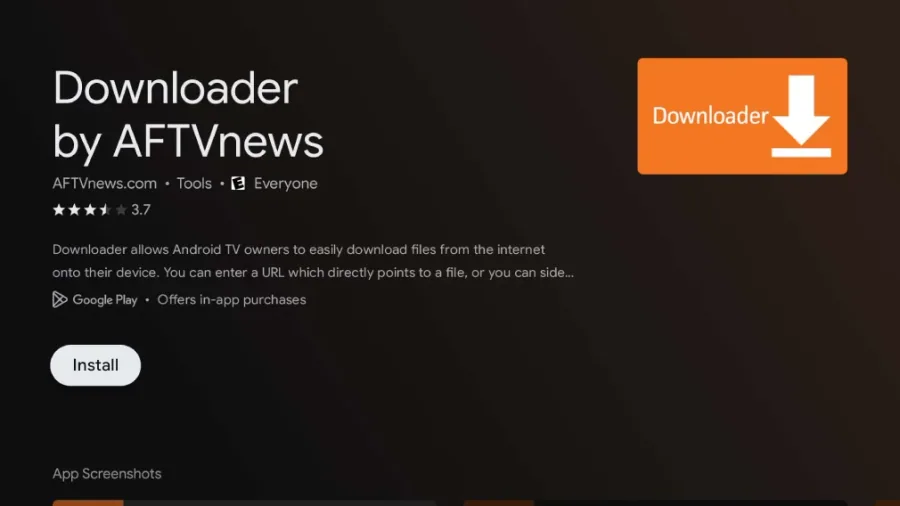
Fire TV has no browser that can install files, so you need Downloader — a free, official Amazon Appstore app that fetches the installer for you.
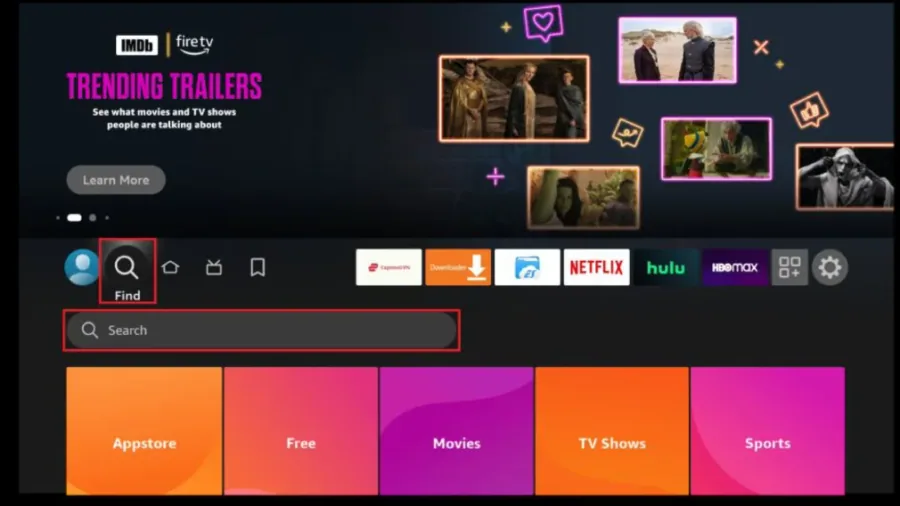
- From the Fire TV home screen, select the magnifying glass in the top-left corner.
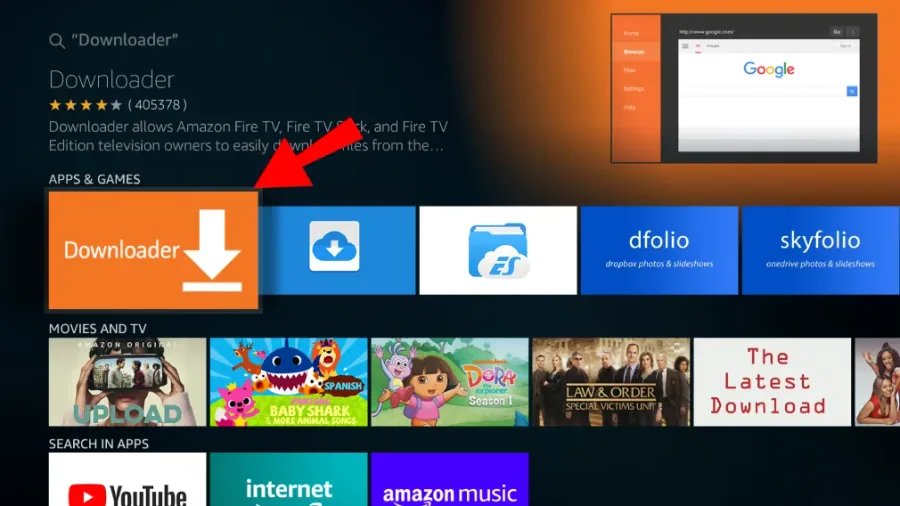
- Type Downloader and pick it from the results. It is the orange icon by AFTVnews.
- Select Get or Download, then wait for it to finish installing.
Leave Downloader installed. You will want it again whenever a new version of the app is released.
Step 2 — Allow installs from unknown sources
By default Fire TV only installs from the Amazon Appstore. This setting tells it to trust Downloader as well.
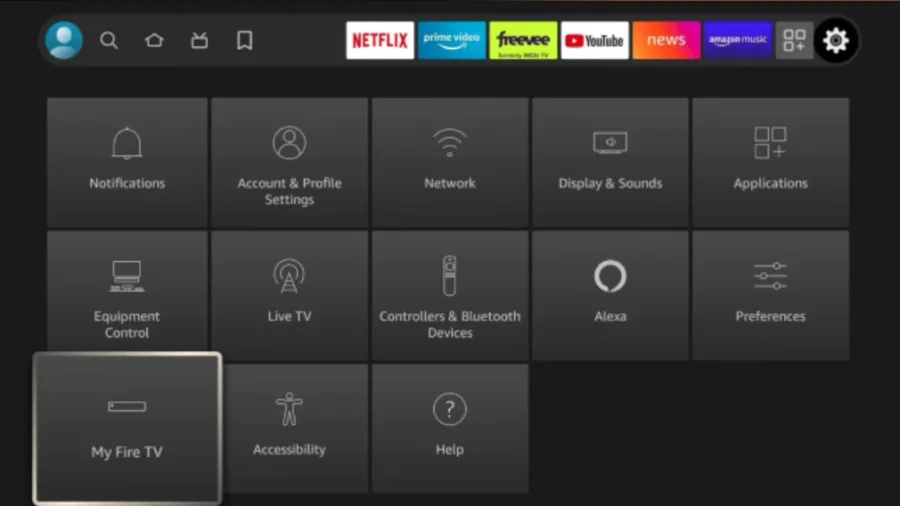
- Go to Settings → My Fire TV.
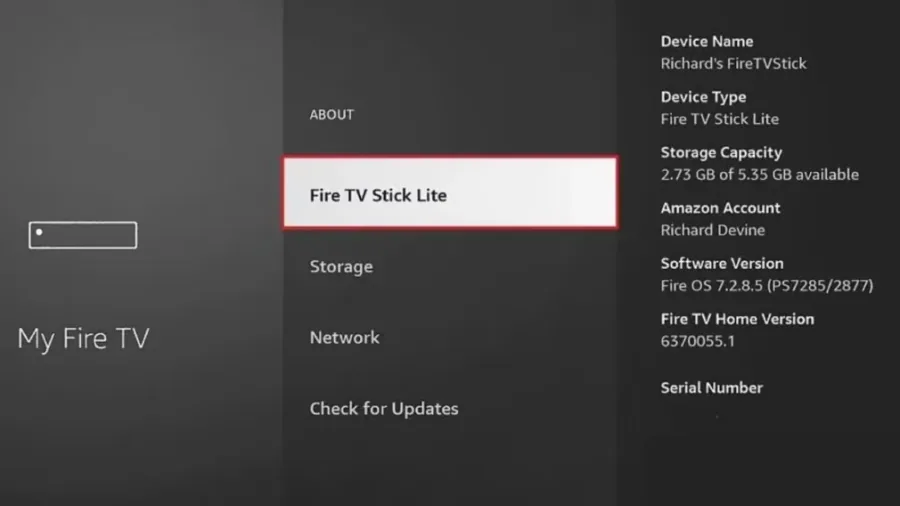
- Open Developer options. If you cannot see it, go back to Settings → My Fire TV → About and click the Fire TV Stick name seven times — Developer options then appears in the previous menu.
- Turn on Install unknown apps, then switch Downloader to On.
On newer Fire OS builds the toggle is per app rather than a single global switch, which is why you enable it specifically for Downloader. That is the safer arrangement — no other app gains the permission.
Step 3 — Download and install CatchON TV
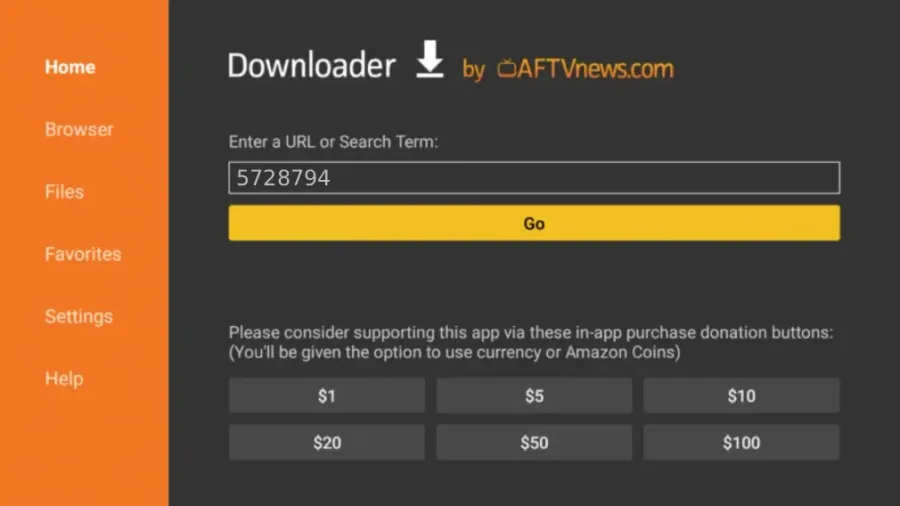
- Open Downloader and select the URL field on the Home tab.
- Type catchonstv.com/catchontv.apk and select Go.
- Wait for the download bar to finish, then select Install on the confirmation screen.
- When it reports App installed, choose Done — not Open — then select Delete twice to remove the installer file. It has already been installed and the file only takes up space.
Always type the address by hand rather than following a link from a forum or a comment. The file on our domain is the only build we publish.
Step 4 — Log in and start watching
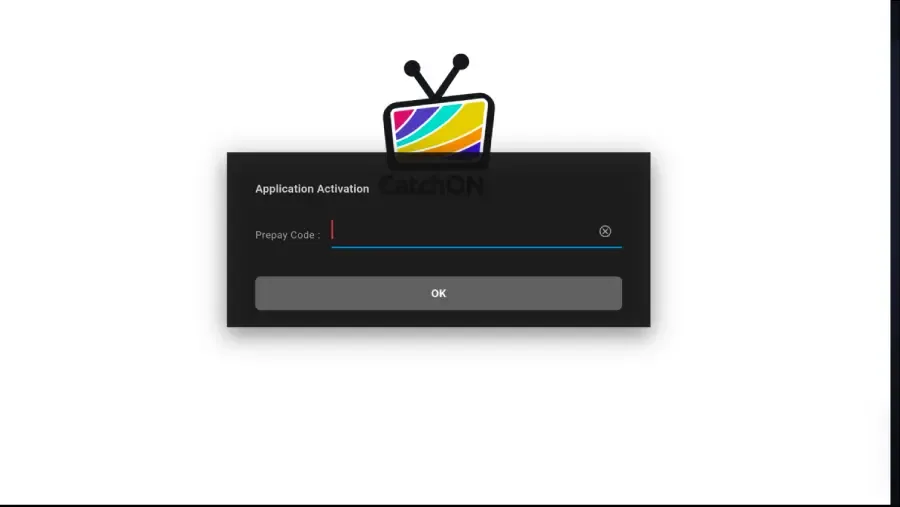
- Open CatchON TV from the Fire TV apps row.
- Enter the Prepay Code from your confirmation email.
- Give it a moment on first launch — the channel list and programme guide download once, then load instantly afterwards.
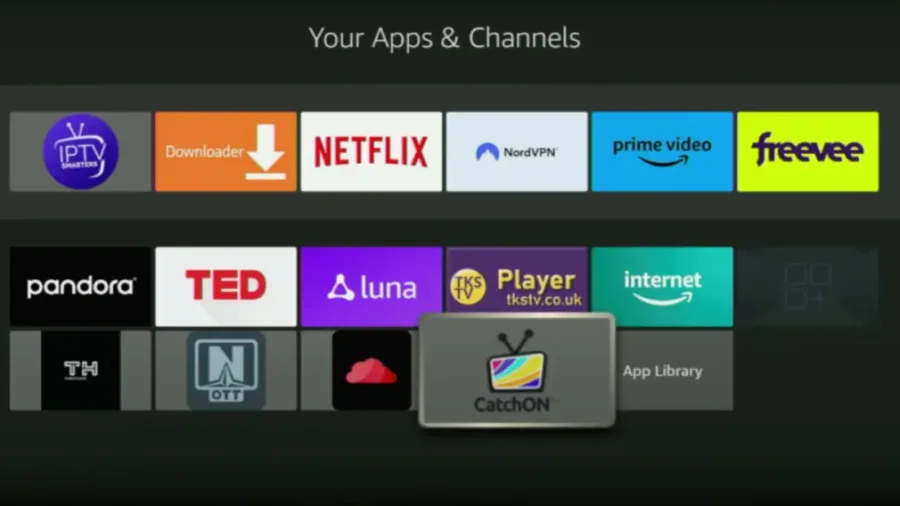
The app does not appear at the front of your home screen straight away. Fire TV drops new apps at the end of the Your Apps & Channels row — open that row, highlight CatchON TV, press the menu button on the remote and choose Move to Front.
Fixing the four things that usually go wrong
"App not installed" at the end of Step 3
Almost always means an older copy is still present. Go to Settings → Applications → Manage Installed Applications, find CatchON TV, choose Uninstall, then run the download again.
The download stops partway
Downloader has no resume. Delete the partial file from Downloader's Files tab and start again. If it stalls at the same point twice, your network is filtering the request — try a different connection before assuming the file is at fault.
Buffering during live channels
Work through it in this order: restart the Firestick from Settings → My Fire TV → Restart; move the router closer or switch to the 5 GHz band; then clear the app cache under Manage Installed Applications. A Firestick with under 500 MB free will buffer regardless of your connection speed, so uninstall anything you do not use.
The remote will not type the address
Use the Amazon Fire TV app on your phone as a keyboard. It pairs to the same account and makes entering the address and your Prepay Code far quicker than the on-screen keyboard.
Updating or removing the app
Sideloaded apps do not auto-update. When we publish a new build, open Downloader and enter the same address — the newer version installs over the old one and your login is kept.
To remove it entirely, go to Settings → Applications → Manage Installed Applications → CatchON TV → Uninstall. If you want to put the Firestick fully back to how it was, also switch Install unknown apps back off for Downloader in Developer options.
Firestick install FAQ
Do I need a VPN to use CatchON TV on a Firestick?
No. The app works without one. Privacy is built in, and the service gets past internet providers that block ordinary IPTV.
Will this work on a Fire TV Cube or a Toshiba Fire TV Edition?
Yes. Every Fire TV device runs the same Fire OS, so the four steps above are identical on the Stick, the Cube and the built-in Fire TV sets from Toshiba and Insignia.
How many devices can I use at once?
That depends on your plan — connections are how our plans are priced, starting at one. See the plans page for the current connection tiers.
Can I install it on other devices too?
Yes. Android boxes and phones, Smart TVs from Samsung and LG, Windows and Mac are all covered in the all-devices setup guide.
I lost my Prepay Code — what now?
It is in your original confirmation email. If you cannot find it, contact support with the email address you signed up with and we will resend it.
Not subscribed yet?
Test the streams on your own Firestick for 24 hours before you pay a thing.
Start the free trial See subscription plans