Navigate to Search:
From your Firestick home screen, click the magnifying glass icon in the top-left corner.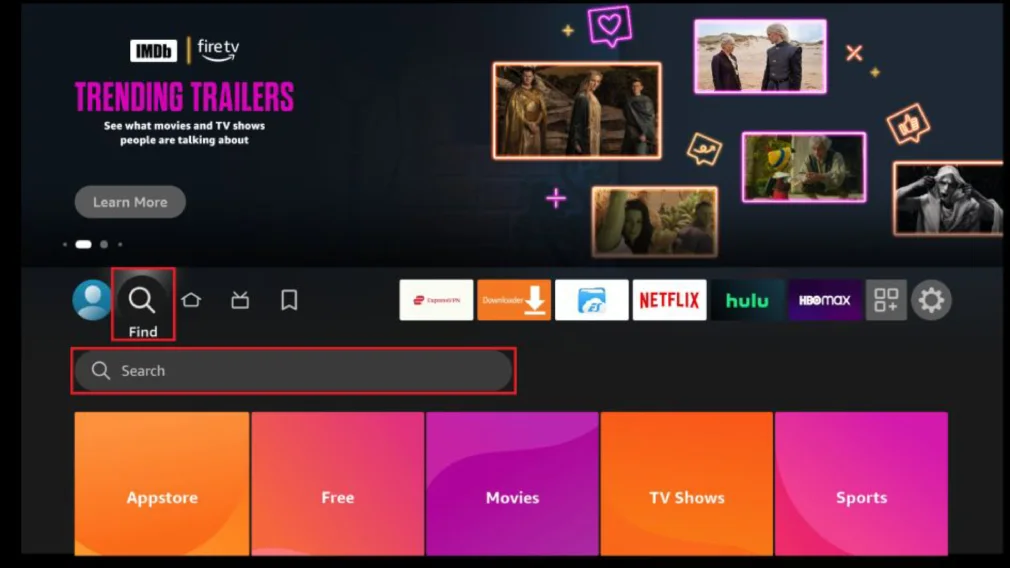
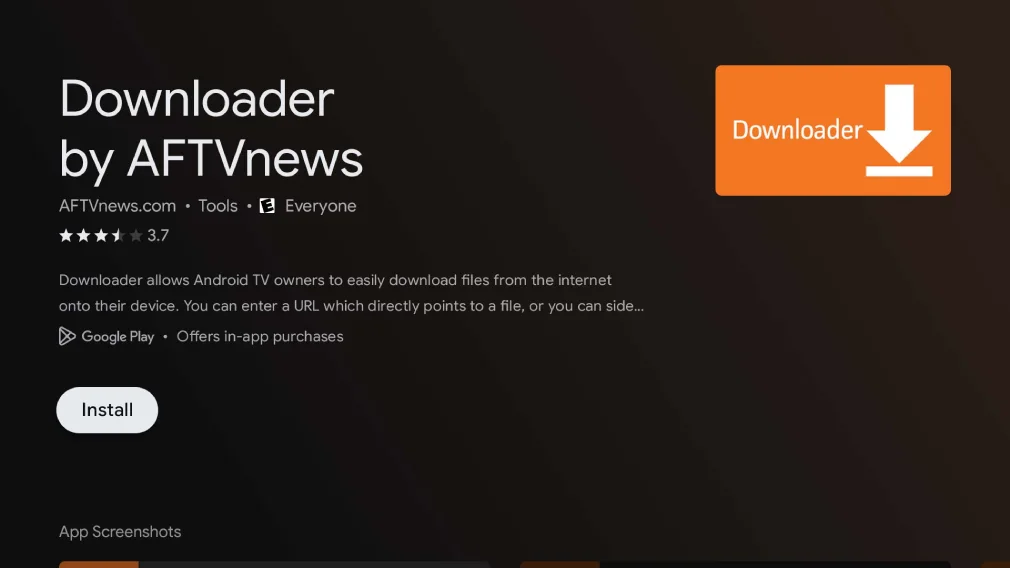
Search for Downloader:
Type “Downloader” and select the app from the search results.
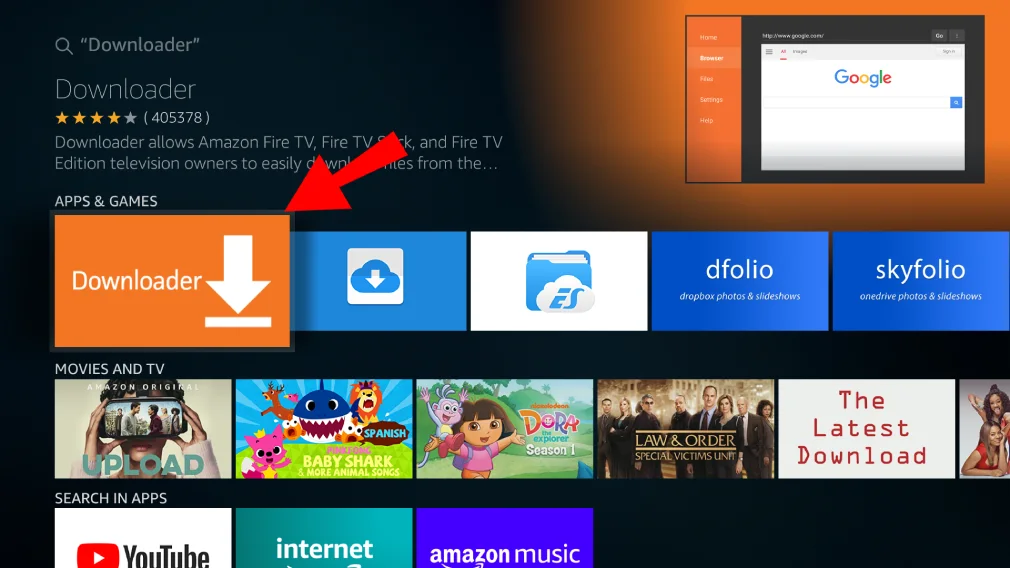
Download and Install:
Click “Download” or “Get” to install the Downloader app.
Open Settings:
From the home screen, navigate to Settings > My Fire TV.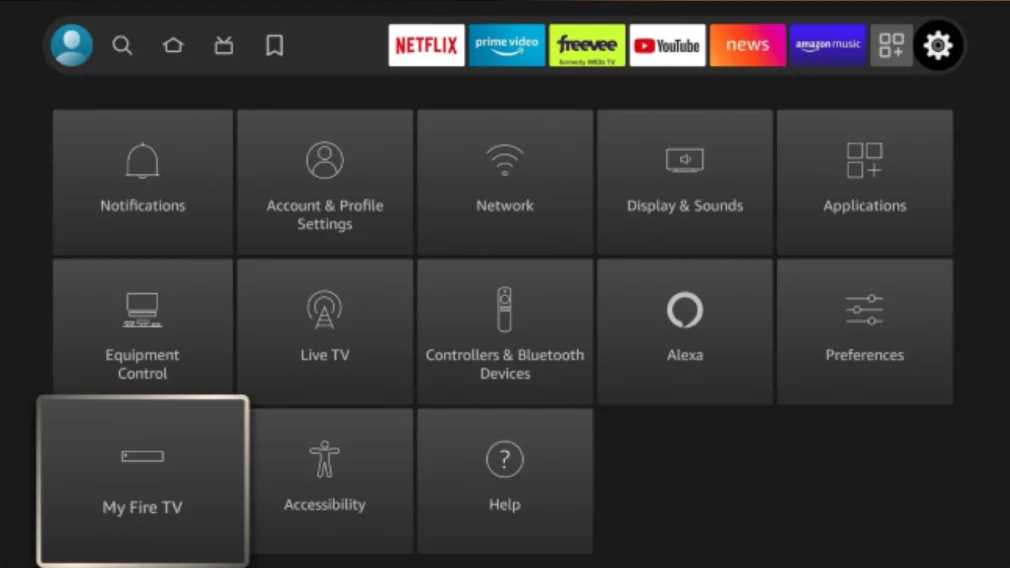
Go to Developer Options:
Click on Developer options and turn on Apps from Unknown Sources. This allows you to install apps from sources outside the Amazon App Store.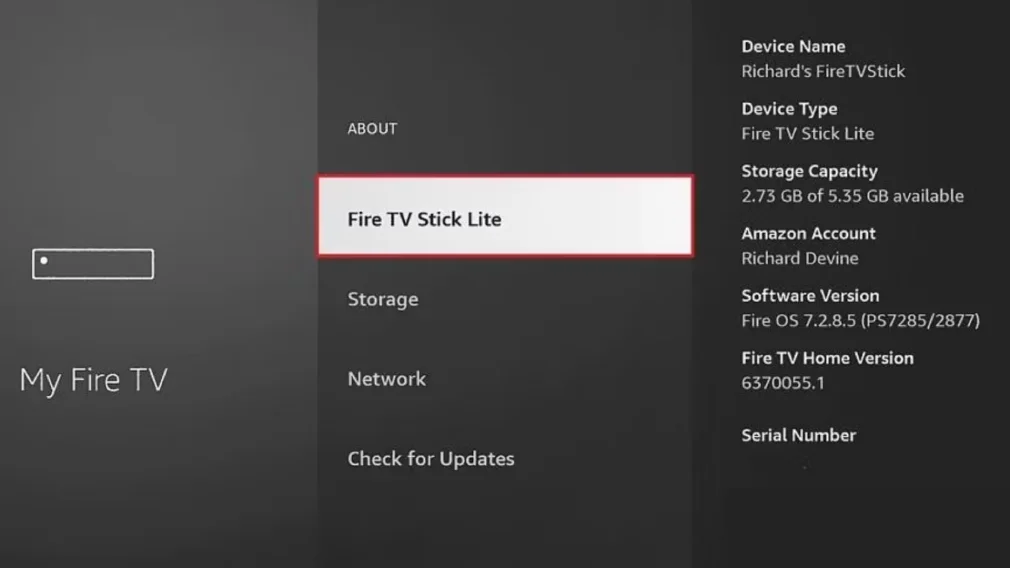
Open Downloader:
Launch the Downloader app.
Enter URL:
Open the Downloader app and enter the code 5728794 or type catchonstv.com/catchontv.apk and click Go.Install CatchOnTV:
The app will download the APK file. Once the download is complete, the installation will begin automatically. Click Install when prompted.
- Open CatchOnTV:
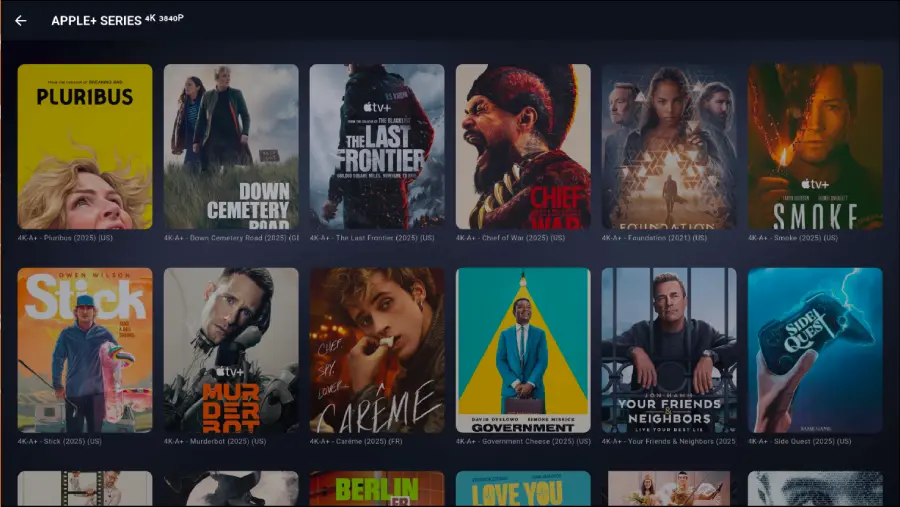
After the installation, open the CatchOnTV app.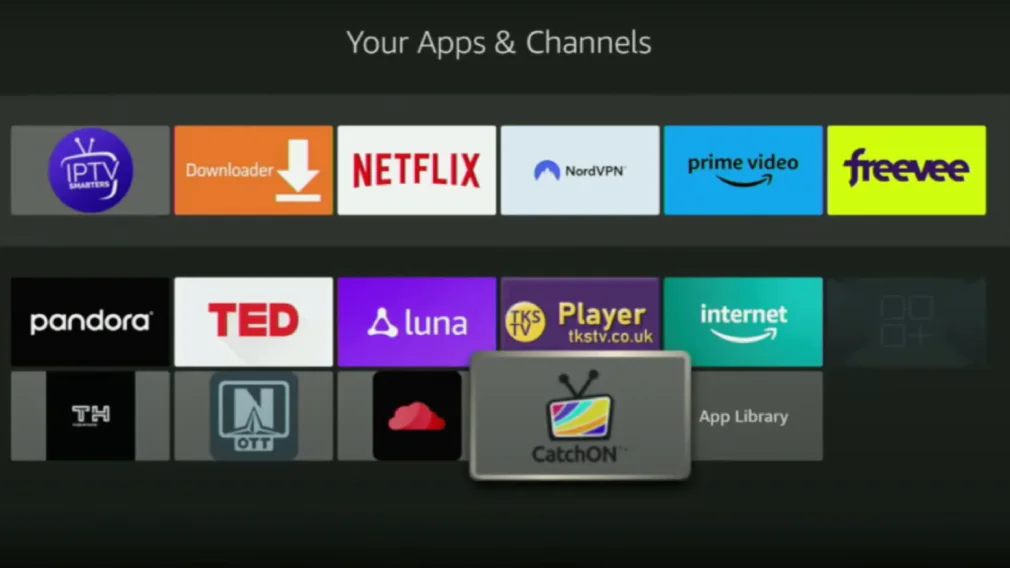
Log In:
Enter the Prepay Code that we provide you If you don’t have an account yet, sign up now to get your credentials and start enjoying CatchOnTV!

Start Watching:
You’re all set! Browse through the vast library of channels and on-demand content. Enjoy streaming your favorite entertainment!